How to download a BCA bank statement

No retyping: a whole statement done in seconds.

For Giro Perorangan, BCA Dollar and Tapres, the bank statement (rekening koran) is now a digital e-Statement. Here are the steps in myBCA and KlikBCA, then how to get it into Excel.

Which statements would you like to convert?

Your file is never sent to a server. It's read right here in this browser, and gone when you close the tab. Check for yourself →

Not sure your bank works? Just try it. Nothing is uploaded, and if the file can't be read you'll see why.

    PDF · BCA, Mandiri, Jago, BNI, BRI, BSI, SeaBank, blu, GoPay, Gojek

    Free, no page limits ·No signup ·Never sent to a server

    • Processed on your computer
    • Every balance checked
    • No ads, no cookies

    BCA bank statements are now e-Statements

    BCA has announced that from 1 February 2026, branches no longer provide printed bank statements for Giro Perorangan (personal current accounts), BCA Dollar and Tapres. Instead, customers open their account statement in digital form through the e-Statement feature in myBCA or KlikBCA.

    Source: BCA, article "Akses Mutasi Rekening Kini Lebih Praktis dan Mudah" (bca.co.id).

    Download in the myBCA app
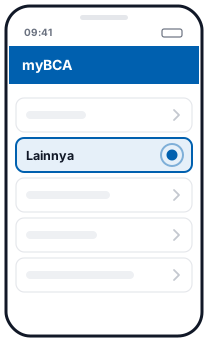
    1. Step 1 in myBCA: Lainnya1Lainnya
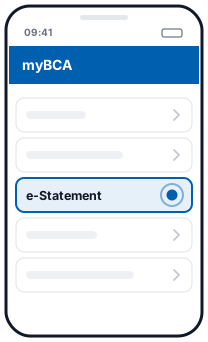
    2. Step 2 in myBCA: e-Statement2e-Statement
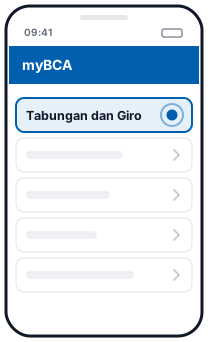
    3. Step 3 in myBCA: Tabungan dan Giro3Tabungan dan Giro
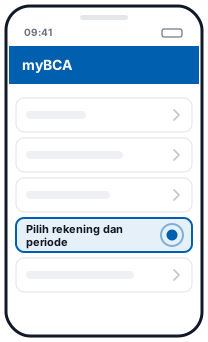
    4. Step 4 in myBCA: Pilih rekening dan periode4Pilih rekening dan periode
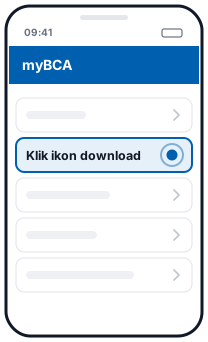
    5. Step 5 in myBCA: Klik ikon download5Klik ikon download
    Download a BCA e-Statement in myBCA (myBCA) · Official guide →
    Illustration, not the official app screen
    1. Log in to myBCA, then choose Lainnya (More) and e-Statement.
    2. Choose Tabungan dan Giro (Savings and Current Accounts).
    3. Choose the account if you have more than one.
    4. Choose the period.
    5. Click the download icon.

    According to BCA, transaction history is available from 2016, and savings or current account e-Statements are shown per month.

    Source: BCA, myBCA e-Statement page (bca.co.id).

    Download in myBCA on the web

    Log in with your BCA ID, open Mutasi (Transactions) for the account number you chose, then click the e-Statement button to the right of the Cari (Search) field. Choose the account number and the period, then choose Tampilkan (Show).

    Source: BCA, article "Akses Mutasi Rekening Kini Lebih Praktis dan Mudah" (bca.co.id).

    Download in KlikBCA
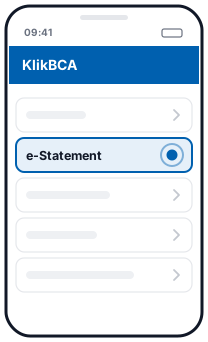
    1. Step 1 in KlikBCA: e-Statement1e-Statement
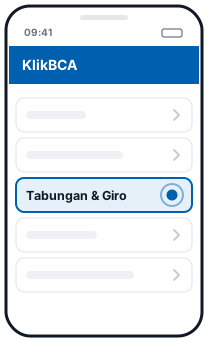
    2. Step 2 in KlikBCA: Tabungan & Giro2Tabungan & Giro
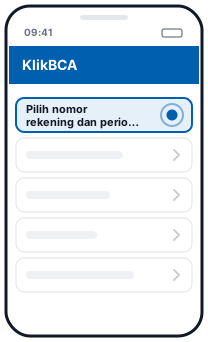
    3. Step 3 in KlikBCA: Pilih nomor rekening dan periode3Pilih nomor rekening dan periode
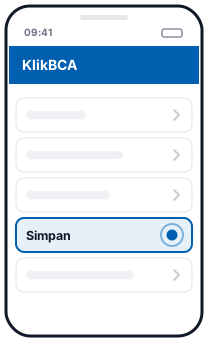
    4. Step 4 in KlikBCA: Simpan4Simpan
    Download a BCA e-Statement in KlikBCA (KlikBCA) · Official guide →
    Illustration, not the official app screen
    1. Log in with your KlikBCA User ID.
    2. Choose the e-Statement menu.
    3. Choose Tabungan & Giro.
    4. Choose the account number and the period.
    5. Choose Simpan (Save), then save the file on your device.

    Source: BCA, article "Akses Mutasi Rekening Kini Lebih Praktis dan Mudah" (bca.co.id).

    Into Excel

    The BCA e-Statement to Excel page on RekeningKoran.id reads your BCA e-Statement PDF in your browser and turns it into rows in Excel, with a balance check.

    If you have a problem

    If you need help, BCA directs customers to contact Halo BCA on 1500888 or use the haloBCA app.

    Source: BCA, article "Akses Mutasi Rekening Kini Lebih Praktis dan Mudah" (bca.co.id).

    Questions

    Can I still get a printed BCA statement at a branch?

    Not for Giro Perorangan, BCA Dollar and Tapres. According to BCA, since 1 February 2026 branches no longer provide printed statements for these products. Customers use the e-Statement in myBCA or KlikBCA instead.

    How far back can I download BCA e-Statements?

    BCA says e-Statements can be downloaded from 2016 onwards.

    Where can I ask if I have a problem?

    BCA directs customers to Halo BCA on 1500888 or through the haloBCA app.

    Updated: 2026-10-20

    Three steps

    How to convert a bank statement to Excel

    1. 1

      Drop your PDFs

      The original e-statement PDF from your bank, one or several at once. If the PDF is locked, enter its password.

    2. 2

      Look for the tick

      Preview every transaction. A green tick means opening balance + transactions = closing balance, and every row matches.

    3. 3

      Download Excel or CSV

      Several statements merge into one file, with a column showing where each row came from.

    Privacy and accuracy

    Your data stays on your computer

    Other converters upload your statement to their servers. Here, the PDF is read directly in your browser and never sent anywhere.

    Never uploaded

    The PDF is read and converted in your browser. The page is even locked so it cannot send data to other sites.

    Every balance checked

    Running balances are checked row by row. If anything doesn't match, the first wrong row is flagged.

    Free, no limits

    No signup, no credit card, no daily page limit.

    Password-protected PDFs

    Locked e-statements open with their password. The password is never stored.

    Many files at once

    A client's whole year of statements merged into one Excel file.

    Indonesian number formats

    1.234.567,89, DB/CR markers and dates without a year are read correctly, so the numbers in Excel are ready to sum.

    Check for yourself that nothing is uploaded

    1. Open your browser's Developer Tools (F12, or Cmd+Option+I on a Mac) and choose the Network tab.
    2. Drop your PDF onto this page and convert it.
    3. Look at the request list: none carries your file (small requests to /ingest are anonymous counts with no file content). You can also disconnect from the internet once the page has loaded, and conversion still works.

    For accountants & tax consultants

    Client bank statements, without retyping

    For accountants, tax consultants, audit firms and bookkeepers: many statements at once, numbers that are checked, and client data that never leaves your computer.

    A whole year at once

    Drop 12 or more PDFs at once. You get one Excel file, with the source file and account on every row.

    Straight into accounting software

    Export each account for Jurnal, Xero, QuickBooks, Odoo or Zoho Books, in each tool's own import format.

    Numbers you can stand behind

    Every running balance and total is checked against what the bank printed. Rows that don't match are flagged, so you know exactly what to look at.

    Client data stays confidential

    PDFs are read in your browser and never sent to a server. No account, and nothing is stored.

    Password-protected PDFs

    Enter the password once. Other files locked with the same password open too.

    Free, no limits

    No signup and no page limits, for one client or a hundred.

    More for accountants →

    Supported banks

    Supported banks and e-wallets

    Beta means that format hasn't been tested on a real statement yet: results are still checked against the printed balances, but check them more carefully. Other banks can be tried too. Something not read? Use the Send an anonymised sample button or let us know, without sending your statement.