Import a PDF Bank Statement into Jurnal

Drop your PDF bank statement (rekening koran) into the box below, then choose Jurnal in the Export for… menu. You get a CSV file whose columns already match the Import Bank Statement template in Mekari Jurnal.

Which statements would you like to convert?

Your file is never sent to a server. It's read right here in this browser, and gone when you close the tab. Check for yourself →

Not sure your bank works? Just try it. Nothing is uploaded, and if the file can't be read you'll see why.

    PDF · BCA, Mandiri, Jago, BNI, BRI, BSI, SeaBank, blu, GoPay, Gojek

    Free, no page limits ·No signup ·Never sent to a server

    • Processed on your computer
    • Every balance checked
    • No ads, no cookies

    What's in the Jurnal file from this page

    The file you download with Export for… → Jurnal follows Jurnal's Import Bank Statement template:

    Column Contents
    TransactionDate Transaction date, in dd/mm/yyyy format
    Received Money in (the Kredit column on the bank statement)
    Spent Money out (the Debit column on the bank statement)
    Description Transaction description, to make reconciliation easier

    Each file holds one account, because Jurnal imports bank statements per bank account. Rows that don't move money (for example balance rows) are left out.

    How to import into Jurnal
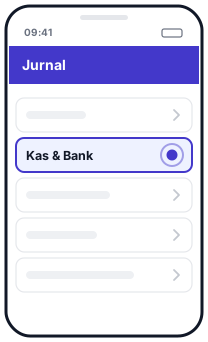
    1. Step 1 in Jurnal: Kas & Bank1Kas & Bank
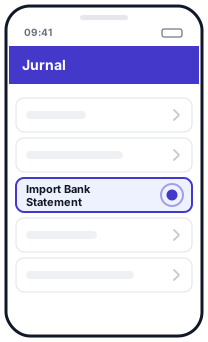
    2. Step 2 in Jurnal: Import Bank Statement2Import Bank Statement
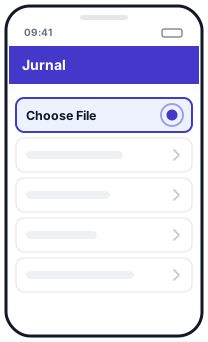
    3. Step 3 in Jurnal: Choose File3Choose File
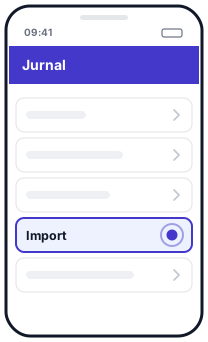
    4. Step 4 in Jurnal: Import4Import
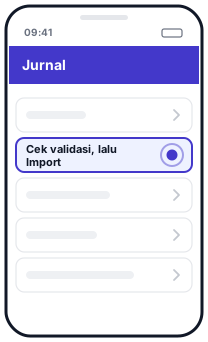
    5. Step 5 in Jurnal: Cek validasi, lalu Import5Cek validasi, lalu Import
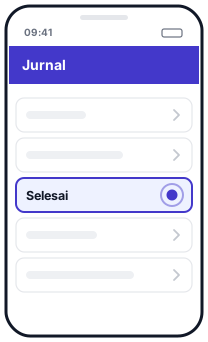
    6. Step 6 in Jurnal: Selesai6Selesai
    Import a bank statement in Jurnal (Jurnal) · Official guide →
    Illustration, not the official app screen
    1. On this page, drop your PDF bank statement into the box above, then choose Export for… → Jurnal on the account you want to import.
    2. In Jurnal, open the Kas & Bank (Cash & Bank) menu.
    3. Choose Import Bank Statement on the matching bank account.
    4. Click Choose File, select the CSV file from this page, then click Import.
    5. Review the data validation page, then click Import again.
    6. Once the import succeeds, click Selesai (Done). The transactions are ready to reconcile.

    The Jurnal steps are taken from the Jurnal help centre. The screens in the app may look slightly different.

    If the import fails

    • The message "Invalid byte sequence in UTF-8". According to the Jurnal Kas & Bank FAQ, check the date format (it must be dd/mm/yyyy). Files from this page already use that format. If you opened the file in Excel and saved it again, the dates may have changed format: download it again and upload the original file unchanged.
    • Many transactions. For imports in general, the Jurnal import FAQ recommends at most 500 rows per file, split into several files if you have more.
    • Rows flagged as not matching. If the balance check flags a row, compare it with the original bank statement before importing.

    Questions

    Which banks can I import into Jurnal with this page?

    Any bank this converter can read: BCA, Mandiri, Jago, GoPay history, plus BNI, BRI, BSI, SeaBank, blu and other banks in beta. Jurnal itself only reads CSV/XLS files from the internet banking of some banks, not PDFs.

    Why not use the file from the bank directly?

    The bank template feature in Jurnal needs a CSV or XLS file from specific internet banking services. If all you have is a PDF e-Statement from an app, or your bank is not on Jurnal's list, the file from this page can be imported with the Jurnal template.

    Is my file sent to Jurnal or to your server?

    No. The PDF is read and converted in your browser. The CSV file is downloaded to your computer, and you upload it to Jurnal yourself.

    Are the numbers checked?

    Yes. Before download, each bank statement is checked: the opening balance plus the transactions must equal the printed balance. Rows that don't match are flagged on screen.

    Updated: 2026-10-20

    Three steps

    How to convert a bank statement to Excel

    1. 1

      Drop your PDFs

      The original e-statement PDF from your bank, one or several at once. If the PDF is locked, enter its password.

    2. 2

      Look for the tick

      Preview every transaction. A green tick means opening balance + transactions = closing balance, and every row matches.

    3. 3

      Download Excel or CSV

      Several statements merge into one file, with a column showing where each row came from.

    Privacy and accuracy

    Your data stays on your computer

    Other converters upload your statement to their servers. Here, the PDF is read directly in your browser and never sent anywhere.

    Never uploaded

    The PDF is read and converted in your browser. The page is even locked so it cannot send data to other sites.

    Every balance checked

    Running balances are checked row by row. If anything doesn't match, the first wrong row is flagged.

    Free, no limits

    No signup, no credit card, no daily page limit.

    Password-protected PDFs

    Locked e-statements open with their password. The password is never stored.

    Many files at once

    A client's whole year of statements merged into one Excel file.

    Indonesian number formats

    1.234.567,89, DB/CR markers and dates without a year are read correctly, so the numbers in Excel are ready to sum.

    Check for yourself that nothing is uploaded

    1. Open your browser's Developer Tools (F12, or Cmd+Option+I on a Mac) and choose the Network tab.
    2. Drop your PDF onto this page and convert it.
    3. Look at the request list: none carries your file (small requests to /ingest are anonymous counts with no file content). You can also disconnect from the internet once the page has loaded, and conversion still works.

    For accountants & tax consultants

    Client bank statements, without retyping

    For accountants, tax consultants, audit firms and bookkeepers: many statements at once, numbers that are checked, and client data that never leaves your computer.

    A whole year at once

    Drop 12 or more PDFs at once. You get one Excel file, with the source file and account on every row.

    Straight into accounting software

    Export each account for Jurnal, Xero, QuickBooks, Odoo or Zoho Books, in each tool's own import format.

    Numbers you can stand behind

    Every running balance and total is checked against what the bank printed. Rows that don't match are flagged, so you know exactly what to look at.

    Client data stays confidential

    PDFs are read in your browser and never sent to a server. No account, and nothing is stored.

    Password-protected PDFs

    Enter the password once. Other files locked with the same password open too.

    Free, no limits

    No signup and no page limits, for one client or a hundred.

    More for accountants →

    Supported banks

    Supported banks and e-wallets

    Beta means that format hasn't been tested on a real statement yet: results are still checked against the printed balances, but check them more carefully. Other banks can be tried too. Something not read? Use the Send an anonymised sample button or let us know, without sending your statement.