What's in the Xero file from this page
After the PDF is converted, pick Xero in the Export for… menu on the statement result. The CSV file you download contains:
| Column | Contents |
|---|---|
| Date | Transaction date, in dd/mm/yyyy format |
| Amount | One amount column: money in is positive, money out is negative. Dot as the decimal separator, no thousands separators |
| Description | Transaction description from the bank statement |
| Reference | Reference number, filled only when the bank statement prints one |
The header row is in row 1. Each file holds one account, because Xero imports one file per bank account. Balance columns, the account number and empty rows are left out, as Xero's guide asks.
How to import into Xero
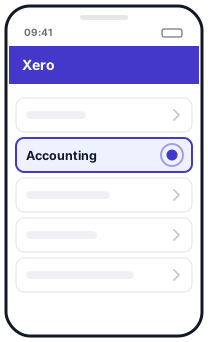 1Accounting
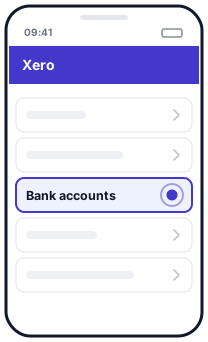 2Bank accounts
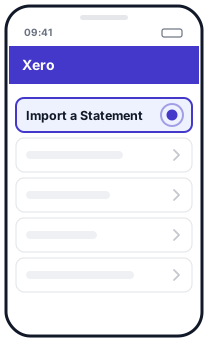 3Import a Statement
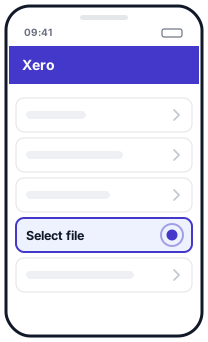 4Select file
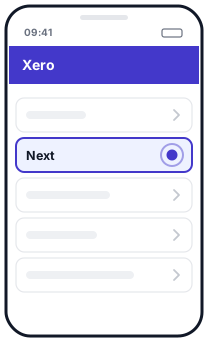 5Next
5Next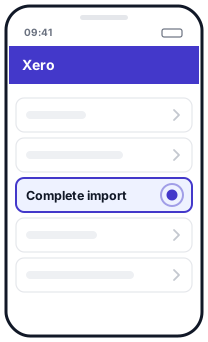 6Complete import
Illustration, not the official app screen
- On this page, drop your PDF bank statement into the box above, then pick Xero in the Export for… menu on the account you want to import.
- In Xero, go to Accounting > Bank accounts.
- Click the menu icon on the matching bank account, then choose Import a Statement.
- Under File to upload, drag in the CSV file from this page or click Select file, then click Next.
- Assign the columns. Date and Amount are required. Description and Reference are optional. Click Next.
- If Xero asks for the date format, choose DD/MM/YYYY. Xero keeps this choice for future imports.
- Review the transactions, then click Complete import.
The Xero steps are taken from Xero's guide. The screens in the app may look slightly different.
If the import fails
- Amounts read wrong. Xero does not accept commas as decimal separators. Files from this page use a dot. If you opened the file in Excel and saved it again, numbers or dates may have changed format: download it again and upload the original file unchanged.
- Many transactions. According to Xero's guide, one file can have at most 100,000 rows.
- Several accounts. Import one file per bank account. Pick Xero in the Export for… menu for each account separately.
- Rows flagged as not matching. If the balance check flags a row, compare it with the original bank statement before importing.
Questions
Which banks can I import into Xero with this page?
Any bank this converter can read: BCA, Mandiri, Jago, GoPay history, plus BNI, BRI, BSI, SeaBank, blu and other banks in beta.
Is my file sent to Xero or to your server?
No. The PDF is read and converted in your browser. The CSV file is downloaded to your computer, and you upload it to Xero yourself.
Are the numbers checked?
Yes. Before download, each bank statement is checked: the opening balance plus the transactions must equal the printed balance. Rows that don't match are flagged on screen.
Is Xero available in Indonesia?
Xero has an Indonesia pricing page at xero.com/id/pricing-plans. Check plans and prices there.
Updated: 2026-10-20